# iOS 使用教程

### **下载**

##### **Element**

[![App-Store.png](https://docs.svxte.ch/uploads/images/gallery/2024-12/scaled-1680-/app-store.png)](https://apps.apple.com/us/app/element-messenger/id1083446067 "Download on the App Store")

##### **Element X** (Beta) 

[![App-Store.png](https://docs.svxte.ch/uploads/images/gallery/2024-12/scaled-1680-/app-store.png)](https://apps.apple.com/us/app/element-x-secure-chat-call/id1631335820 "Download on the App Store")

<p class="callout info">Element 需 iOS15.0+，Element X 需 iOS17.6+。iOS17.6以下系统请使用 Element。</p>

### **使用**

<p class="callout warning">**Element APP 暂不支持注册，注册请使用 [Web](https://chat.svxte.ch "SVX Chat")。**</p>

#### **Element**

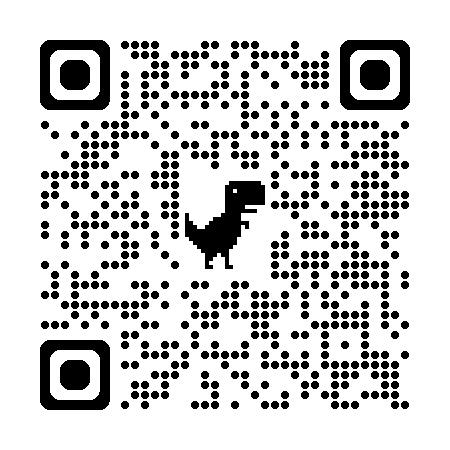
> 使用 Element 的部分地区用户可能由于网络问题无法进入更改网址页面，请使用相机扫码进入APP。（Element X 例外） <details><summary></summary>
> 
> ![qrcode_svxchat.png](https://docs.svxte.ch/uploads/images/gallery/2024-12/scaled-1680-/qrcode-svxchat.png)
> 
> </details>

1. 点击**我已拥有账户**
2. 请将 matrix.org 改为 **svx.im** (如扫码进入，应该已自动更改)
3. 输入账号密码登录

#### **Element X**

1. 点击**手动登录**（暂不支持 使用二维码登录）
2. 点击**更改账户提供方**
3. 点击**其他，**输入 **svx.im** 后点击下方内容
4. 点击继续后输入账号密码登录